Guide
How to connect Garmin to ChatGPT
There are a few ways to get your Garmin data into ChatGPT. This guide covers which ChatGPT plans support it, how the options differ, how to set up Shape, a hosted connector, from ChatGPT’s plugin directory, and what to do when it does not work.
 Samuel KraftUpdated
Summary
- Garmin has no connector of its own. You use a hosted service, a server you run yourself, or a file export.
- Shape is in ChatGPT’s plugin directory as Shape Calendar. Sign up on Shape and connect Garmin first, then add it in ChatGPT.
- ChatGPT only talks to servers it can reach over the internet. A local server needs a public tunnel, a hosted one does not.
- Most options are read-only. To have ChatGPT write workouts to your watch, you need a platform on Garmin’s partner API, such as Shape.
Which ChatGPT plans support this
Shape does not need a paid ChatGPT plan. It is listed in ChatGPT’s plugin directory as Shape Calendar, so you add it once from the Plugins page on chatgpt.com and it follows your account into the ChatGPT apps on your phone and desktop.
On a Business, Enterprise or Education workspace an admin may need to allow the plugin first.
Ways to connect Garmin to ChatGPT
Garmin does not publish an MCP server, so every option comes from a third party. They differ in where the server runs, how it signs in to Garmin, whether ChatGPT can reach it, and whether ChatGPT can write workouts back.
| Option | Runs on | Garmin sign-in | Works with ChatGPT | Writes workouts | Cost |
|---|---|---|---|---|---|
Training platform with a connector Shape (an official ChatGPT plugin) and other Garmin partner platforms | Hosted | Garmin OAuth | Yes | Yes | Subscription |
Hosted connector Various third-party services | Hosted | Varies | Yes | Varies | Free to a small subscription |
Local MCP server Open source projects on GitHub | Your computer | Garmin username and password | Only through a public tunnel | Usually not | Free |
File export FIT or CSV from Garmin Connect | No server | None | Yes, one file at a time | No | Free |
Training platform with a connector
Training platforms on Garmin’s partner API, Shape among them, work like this. You connect Garmin once through Garmin’s own sign-in page, the platform receives your activities and daily health data as the watch syncs, and ChatGPT talks to the platform. The partner API also accepts workouts, so ChatGPT can plan a session and it appears on your watch. The data includes planned workouts and training load, which the other options do not have. Shape is in ChatGPT’s official plugin directory as Shape Calendar, so there is no server URL to paste. Shape also does the sports science before ChatGPT sees the data: load for every workout, fitness, fatigue and form, the acute to chronic load ratio, and readiness against your own sleep, HRV and resting heart rate. It costs a subscription.
Hosted connector
Several services give you a URL to paste into ChatGPT and read your Garmin data for you. Setup takes a few minutes. Before choosing one, check how it signs in to Garmin, since some use your username and password rather than OAuth, and check whether it can write workouts back. Some can, many cannot.
Local MCP server
Open source projects on GitHub run on your own computer and use Garmin Connect’s unofficial web API with your Garmin username and password. They are free and expose a lot of data. ChatGPT cannot reach a server on your computer, so you also have to publish it through a tunnel and keep both running. The login can stop working when Garmin changes something.
File export
Open an activity in Garmin Connect on the web, export the FIT file or the splits as CSV, and upload it in a ChatGPT chat. Nothing to install and no account needed. This works for looking at one workout. For questions about a whole month you have to export again every time.
Set up Shape, a hosted connector
Sign up on Shape first and add it in ChatGPT second. The free trial can only be started on shapecalendar.com, and connecting Garmin there means ChatGPT has your training to work with from the first question.
- 1
Connect Garmin to Shape
Create a Shape account and start the free trial, then go to Settings, Connections, and choose Garmin. Garmin’s sign-in page opens. Approve it and the last 30 days start syncing. Shape does not see your Garmin password.
Create a Shape accountFree for 14 days. - 2
Add Shape Calendar in ChatGPT
Open Shape Calendar in ChatGPT and add it. Or on chatgpt.com, open Plugins in the sidebar and search for Shape Calendar.
- 3
Sign in and allow ChatGPT
Press Sign in with Shape Calendar. A Shape page opens. Sign in with the same account you just made, check that it shows the right email and press Allow ChatGPT. ChatGPT confirms the plugin is installed. The default permission, Allow low-risk actions, lets ChatGPT read without asking and confirms before it changes your calendar.
Press Sign in with Shape Calendar.
A Shape page opens. Check the account and press Allow ChatGPT.
Shape Calendar is installed. The default permission, Allow low-risk actions, lets ChatGPT read without asking and confirms before it writes.
- 4
Start a new chat
Open a new chat and check that Shape Calendar is switched on in the tools menu under the message box. Then ask something like this.
Can’t find it? Add Shape as a custom MCP server
Add Shape by hand instead. If your workspace only allows custom servers, or the directory does not show Shape Calendar, open Plugins, press the plus button next to the search field and choose Create custom MCP server, then press Create MCP App. Name it Shape Calendar, paste this as the server URL, leave authentication on OAuth, tick the acknowledgement and press Create. Then carry on from step 3. Other hosted connectors are added the same way with their own URL.
https://shapecalendar.com/mcpOpen Plugins in the sidebar, press the plus button next to the search field and choose Create custom MCP server.
A New Plugin dialog opens with an upload box. Ignore the box and press Create MCP App at the bottom left. ChatGPT uses both names for the same thing.
Name it, paste https://shapecalendar.com/mcp as the server URL, leave authentication on OAuth, tick the acknowledgement and press Create.
Claude, Cursor and other clients
The same server works in any client that supports MCP over HTTP, and one Shape account can be connected to several at once. The Claude steps are in the Garmin and Claude guide. Cursor, Raycast and clients without OAuth use the URL plus a token from Settings, API access. Config examples are on the Garmin MCP server page.
What ChatGPT can read
Once connected through Shape, ChatGPT has access to the following. The full tool list is in the MCP docs.
- Workouts
- Planned and completed workouts with sport, duration, distance, average heart rate, average power, elevation gain and training load. ChatGPT can filter by date range and sport.
- Workout details
- For workouts recorded on a Garmin device: heart rate, pace, cadence, power, elevation and GPS over the course of the workout, lap splits, and time in each training zone.
- Daily health
- Sleep, HRV, resting heart rate, Body Battery, VO2 max, body composition and steps, one record per day. If you have more than one source connected, the records are merged.
- Training status
- Readiness, fitness, fatigue and form, your acute to chronic load ratio, and the planned load for the coming week.
- Writing to the calendar
- ChatGPT can create, update, move and delete workouts, up to 100 in one call. Structured workouts sync to Garmin Connect and show up on the watch.
A read-only connector usually returns activity summaries and a daily wellness record. That covers questions about sleep and recovery. It does not cover pace within a workout, and it cannot put a session on your calendar or your watch.
Limitations
- Garmin sends data after each watch sync, not live. A workout you finished a few minutes ago may not be there yet.
- The Garmin API only sends the last 30 days when you connect. Older history has to come from Garmin’s data export, which Shape can import.
- Watch settings, alarms and Garmin’s own coaching plans cannot be changed from ChatGPT. Workouts can.
- ChatGPT’s menus move now and then, and admins of Business, Enterprise and Education workspaces can switch plugins off.
Troubleshooting
- There is no Developer mode switch in settings
- You do not need one. Shape Calendar is in ChatGPT's plugin directory, so you add it from Plugins without any switch. OpenAI removed the Developer mode switch in October 2026, and custom MCP servers are also added straight from the Plugins page now. If your account still shows it under Settings, Security and login and you are adding Shape by hand, turn it on.
- Shape Calendar does not show up when I search Plugins
- Search for the full name, Shape Calendar, on chatgpt.com in a browser. On a Business, Enterprise or Education workspace an admin may have to allow the plugin first. If it still does not show up, add Shape by hand as a custom MCP server, as described under the setup steps.
- ChatGPT says my Shape account has no active plan
- Either you signed in with a different Shape account than the one you signed up with, or the account was made from inside ChatGPT, where the trial cannot be started. Open shapecalendar.com, sign in, and start the trial from there. If you used the wrong account, remove Shape Calendar from ChatGPT's Plugins page and add it again with the right one.
- The plugin is installed but ChatGPT does not use it
- Start a new chat and check that Shape Calendar is switched on in the tools menu under the message box. Naming it in the prompt helps: "use Shape to look at my last two weeks".
- ChatGPT asks for confirmation before every change
- That is the default permission, Allow low-risk actions. ChatGPT reads without asking and confirms before it writes to your calendar. You can change it on the plugin's page, but confirming writes is a reasonable default.
- ChatGPT says there is no Garmin data
- Garmin sends activities to Shape after each sync from the watch, and the first sync covers the last 30 days. Sync the watch, wait a minute and ask again. Older history comes from the Garmin export, see the questions below.
- A workout shows up twice
- Two sources recorded the same workout, usually Garmin and Apple Health. Shape pairs them on import and keeps one. If a pair was missed, ask ChatGPT to pair the two activities, or do it in the calendar.
- The sign-in page does not open
- Your browser is blocking pop-ups, or you are signed out of Shape in that browser. Sign in to Shape first, then press Sign in with Shape Calendar again.
Questions
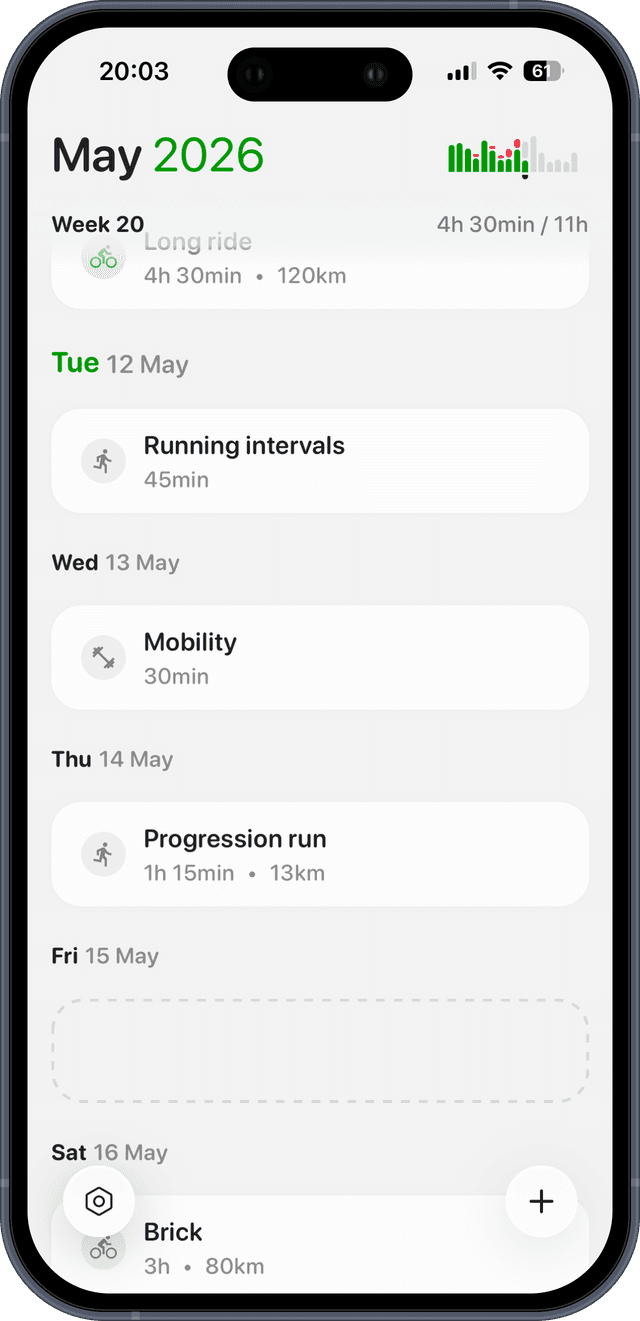
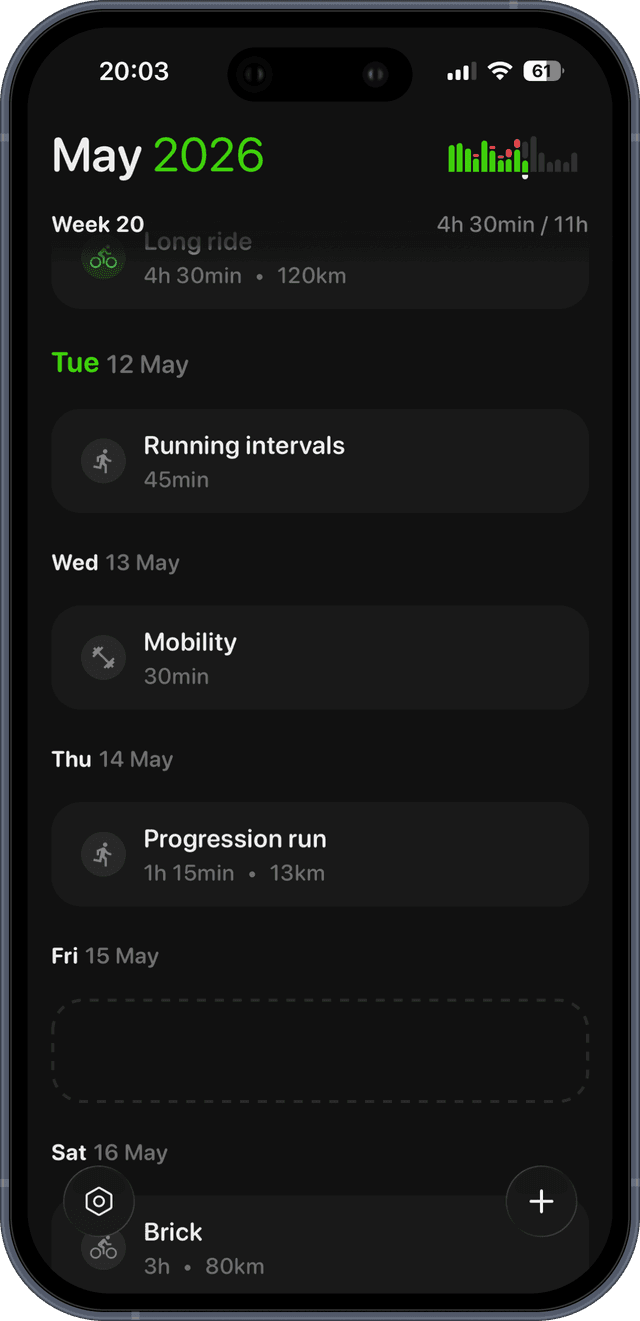
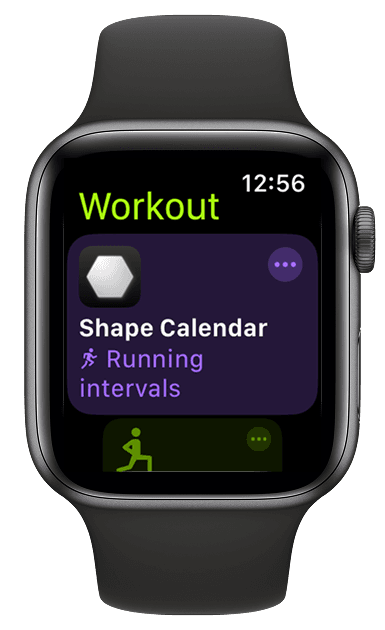
Let ChatGPT plan your training. Shape sends it to your watch.
Connect Garmin, connect ChatGPT, and every workout ChatGPT plans lands on your Garmin. Free for 14 days.