Connect Shape to Claude
Updated November 1, 2026
Add Shape to Claude once, then ask about your training or plan workouts from any chat, on web, desktop or mobile.
Connect
- 1
Add Shape as a connector
Add to ClaudeOpens claude.ai with the dialog filled in. Skip to step 3.Or by hand: in claude.ai → Settings → Connectors, press Add and choose Add custom connector.
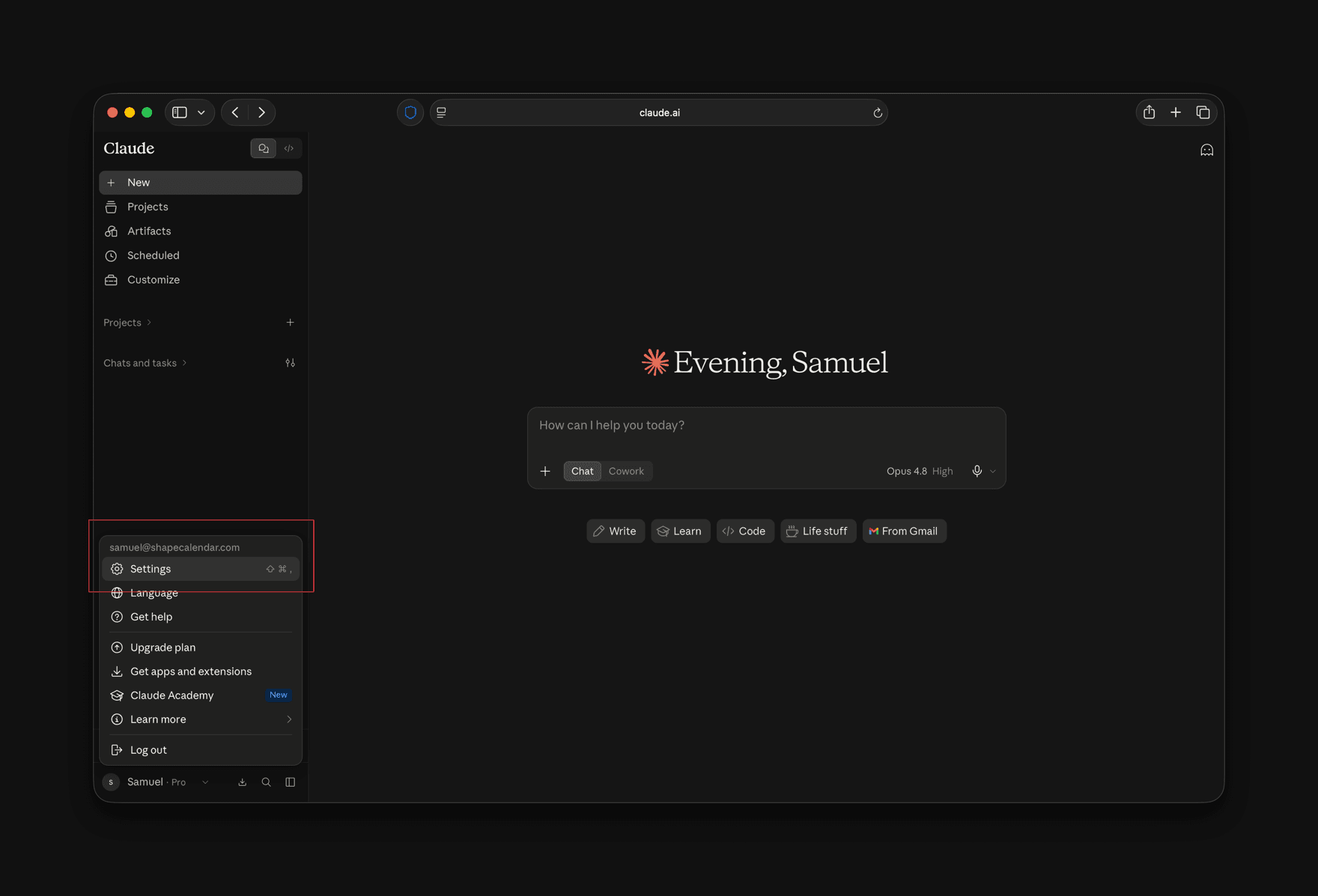
Open the account menu at the bottom left and choose Settings. 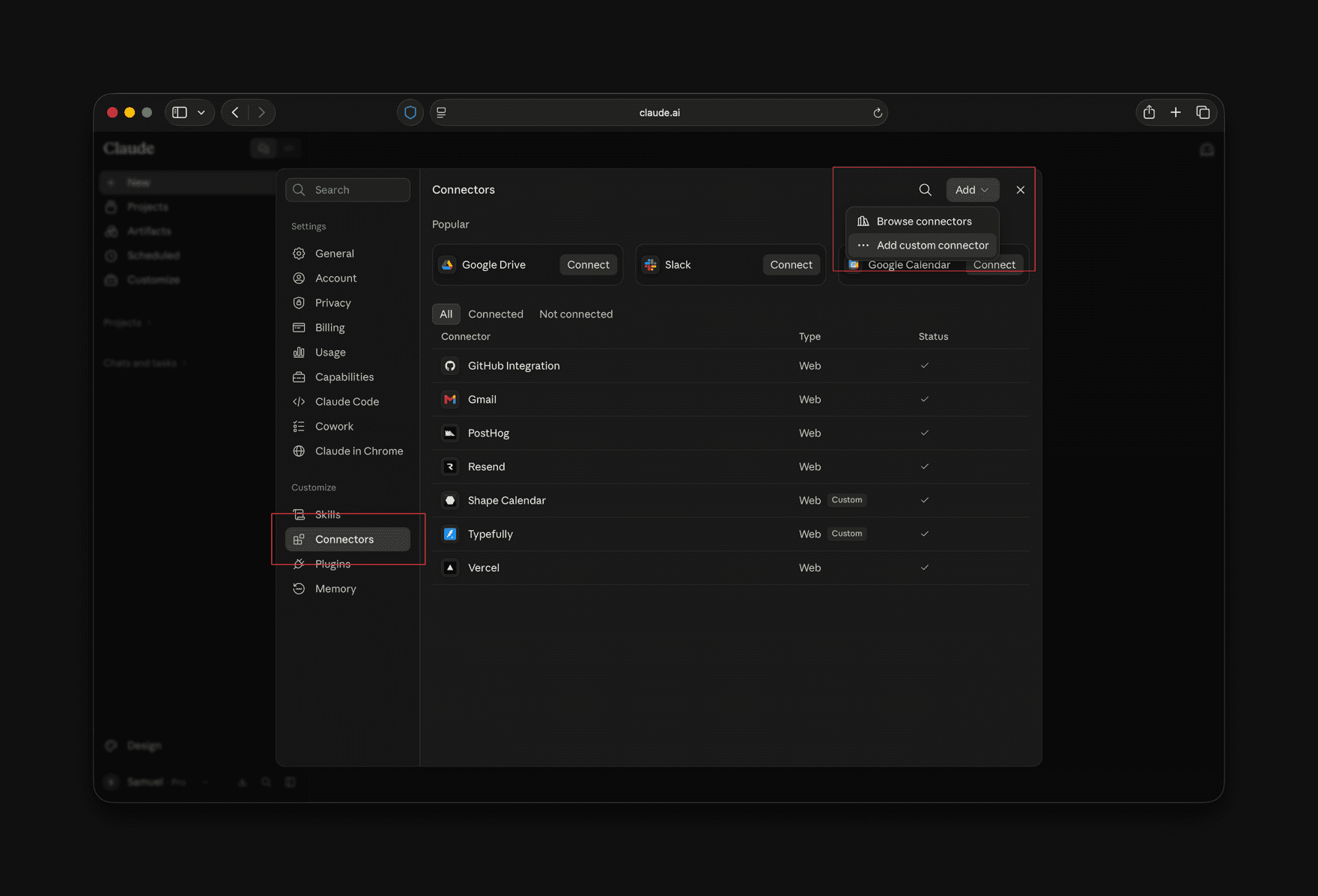
Go to Connectors, press Add, then Add custom connector. - 2
Paste the server URL
Name it
Shape, paste this URL and press Continue.https://shapecalendar.com/mcp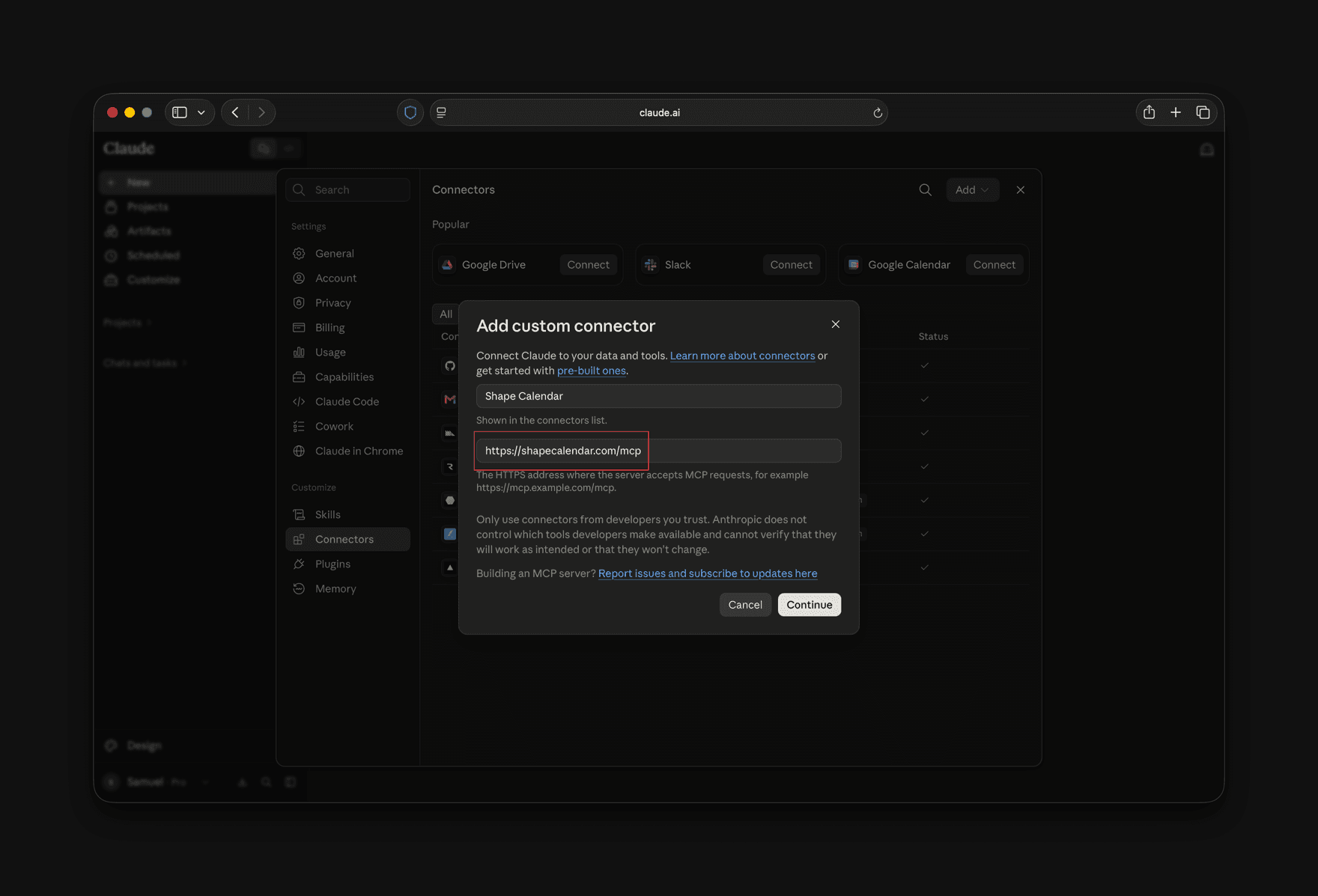
Give it a name and paste https://shapecalendar.com/mcp as the URL, then press Continue. - 3
Approve and allow the tools
Keep the defaults and continue. Your browser goes to a Shape page, where you approve. Then open the Shape connector and set Read-only tools to Always allow, so Claude doesn’t ask on every message.
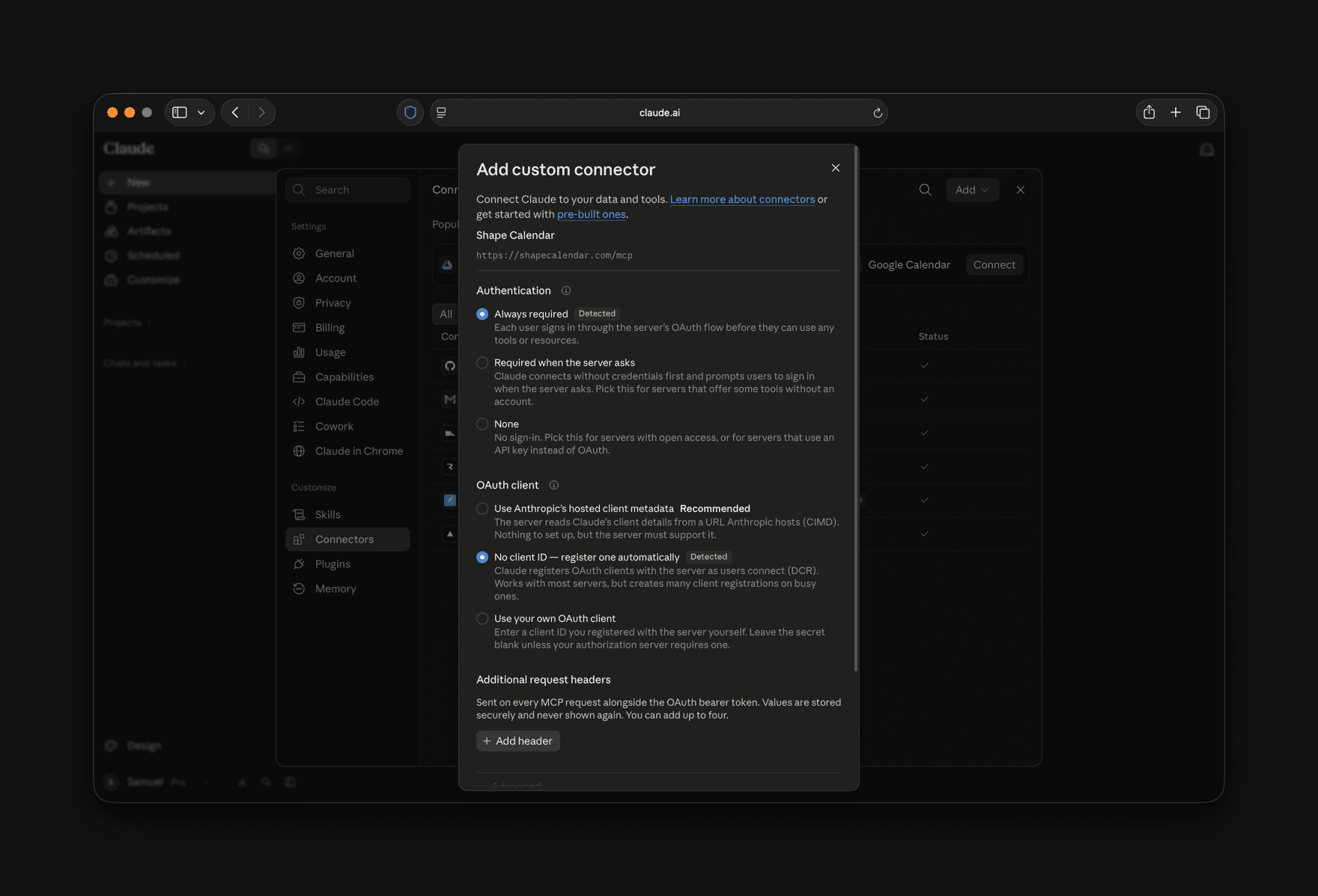
Claude detects the sign-in method on its own. Keep the defaults and continue. A Shape screen opens in your browser to approve the connection. 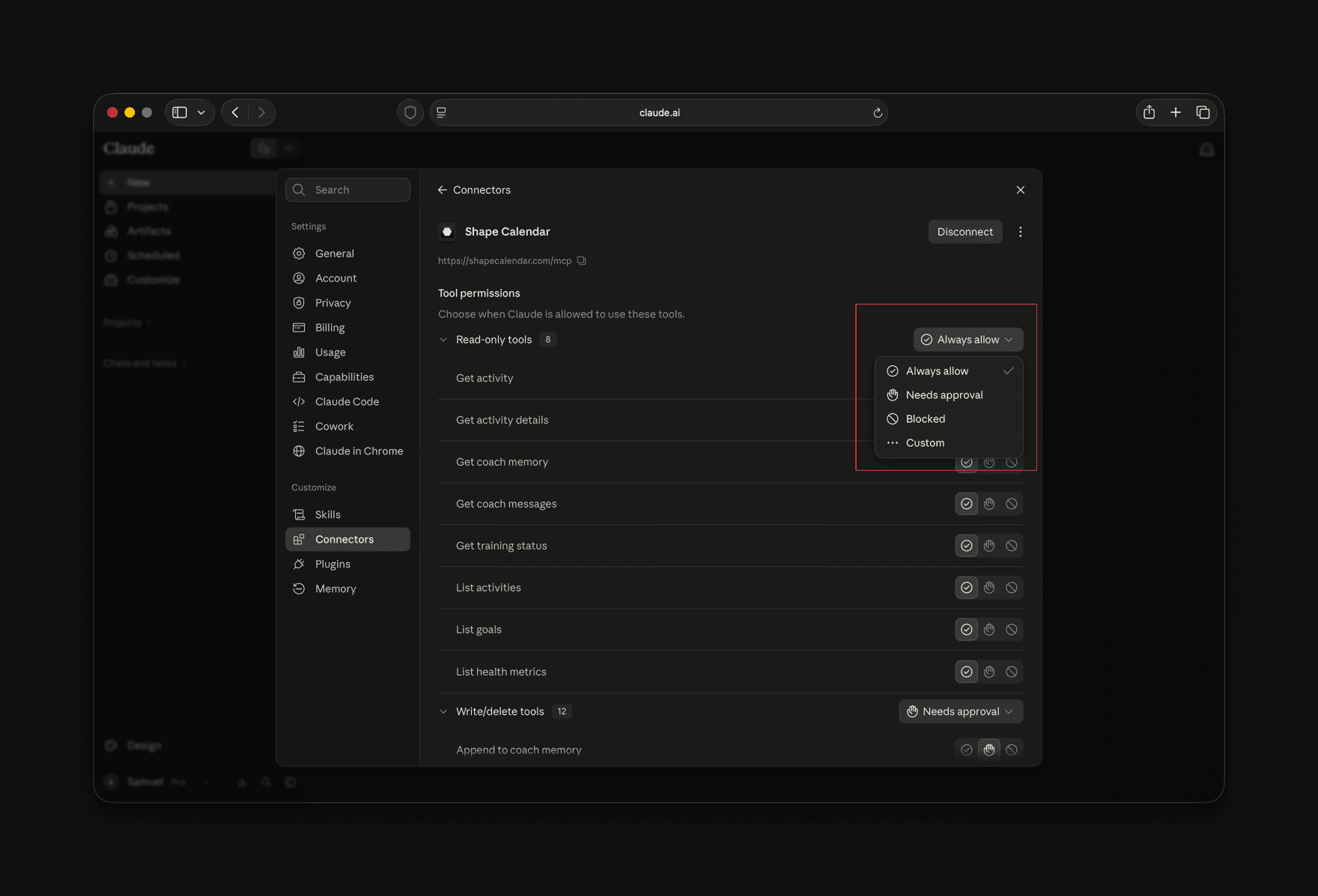
On the connector page, set Read-only tools to Always allow. Leave Write/delete tools on Needs approval if you want to confirm before Claude changes your calendar.
Check it works
Which Claude plans work
All of them. The Free plan allows one custom connector, and paid plans allow more.