Connect Shape to ChatGPT
Updated November 1, 2026
Add Shape Calendar to ChatGPT once, then ask about your training or plan workouts from any chat.
Connect via ChatGPT plugin
- 1
Sign up on Shape first
Start your free trial and connect your device before you open ChatGPT, so your training is there for the first question. Already have an account? Skip to step 2.
- 2
Add Shape Calendar
Or on chatgpt.com, open Plugins in the sidebar and search for Shape Calendar. On a Business, Enterprise or Edu workspace, an admin may have to allow it first.
- 3
Sign in and approve
Press Sign in with Shape Calendar. On the Shape page, check it’s the right account and press Allow ChatGPT. By default ChatGPT reads without asking and confirms before it writes.
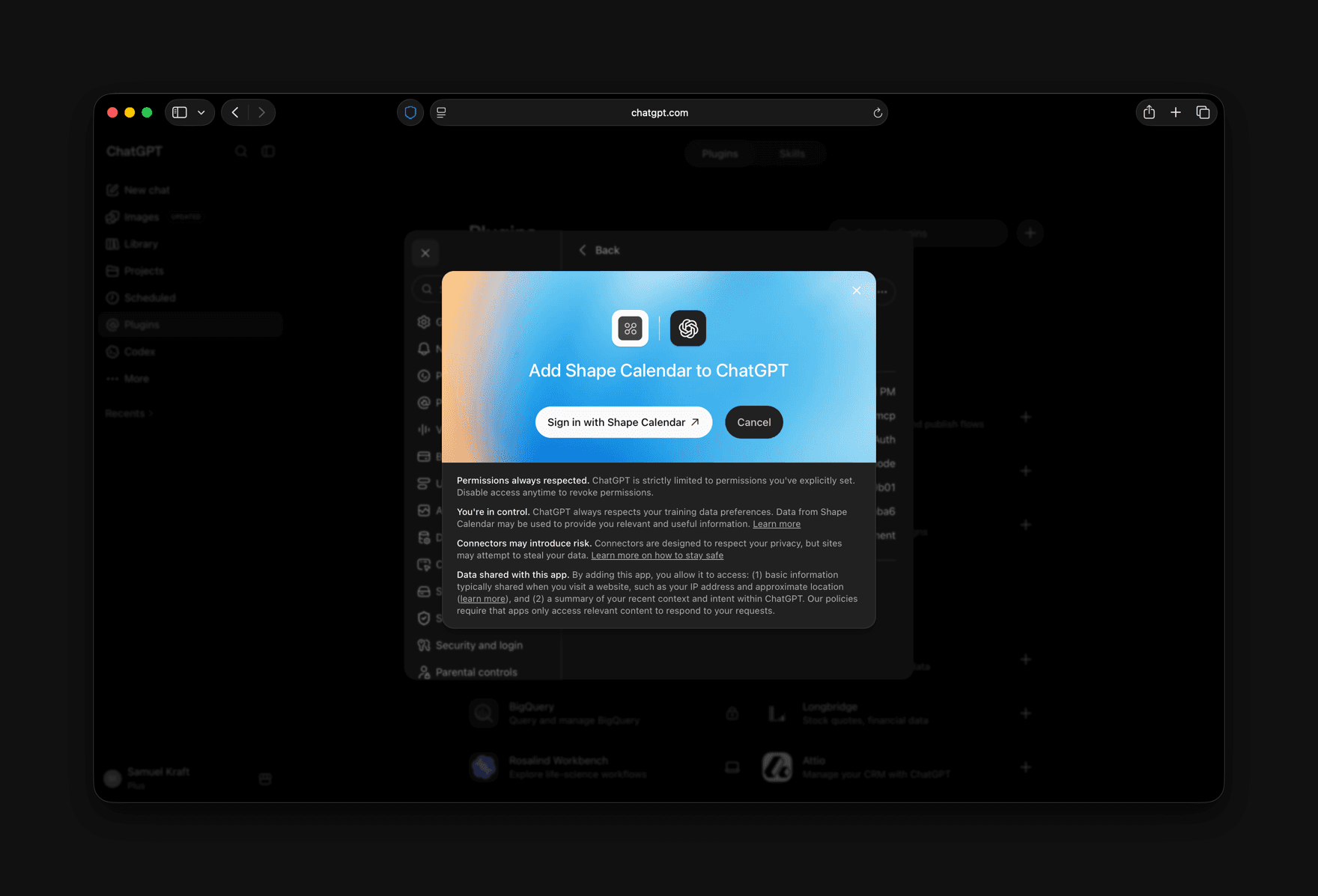
Press Sign in with Shape Calendar. 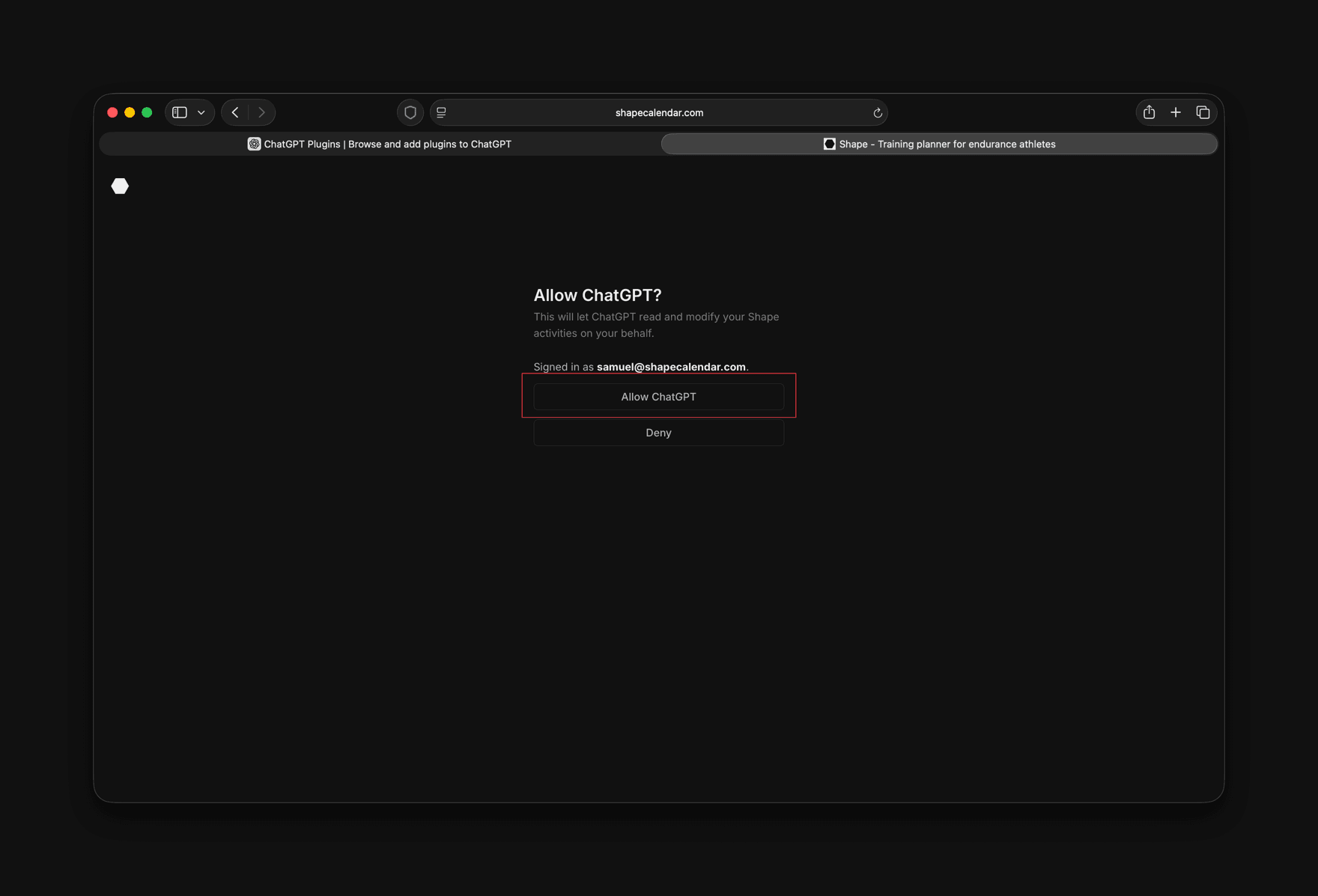
A Shape page opens. Check the account and press Allow ChatGPT. 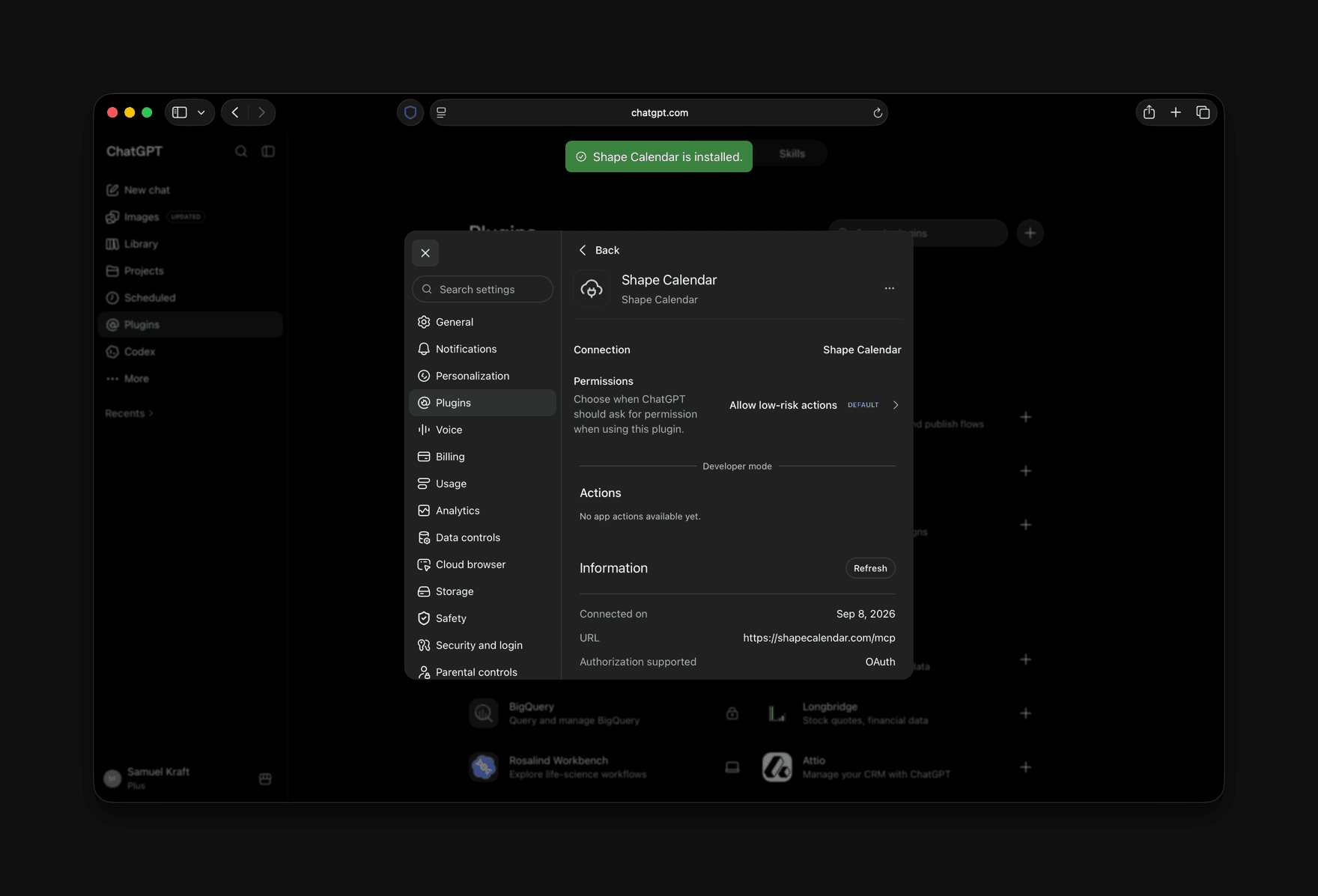
Shape Calendar is installed. The default permission, Allow low-risk actions, lets ChatGPT read without asking and confirms before it writes. - 4
Ask something
In a chat, pick Shape Calendar from the plus menu and ask:
Connect as a custom MCP server
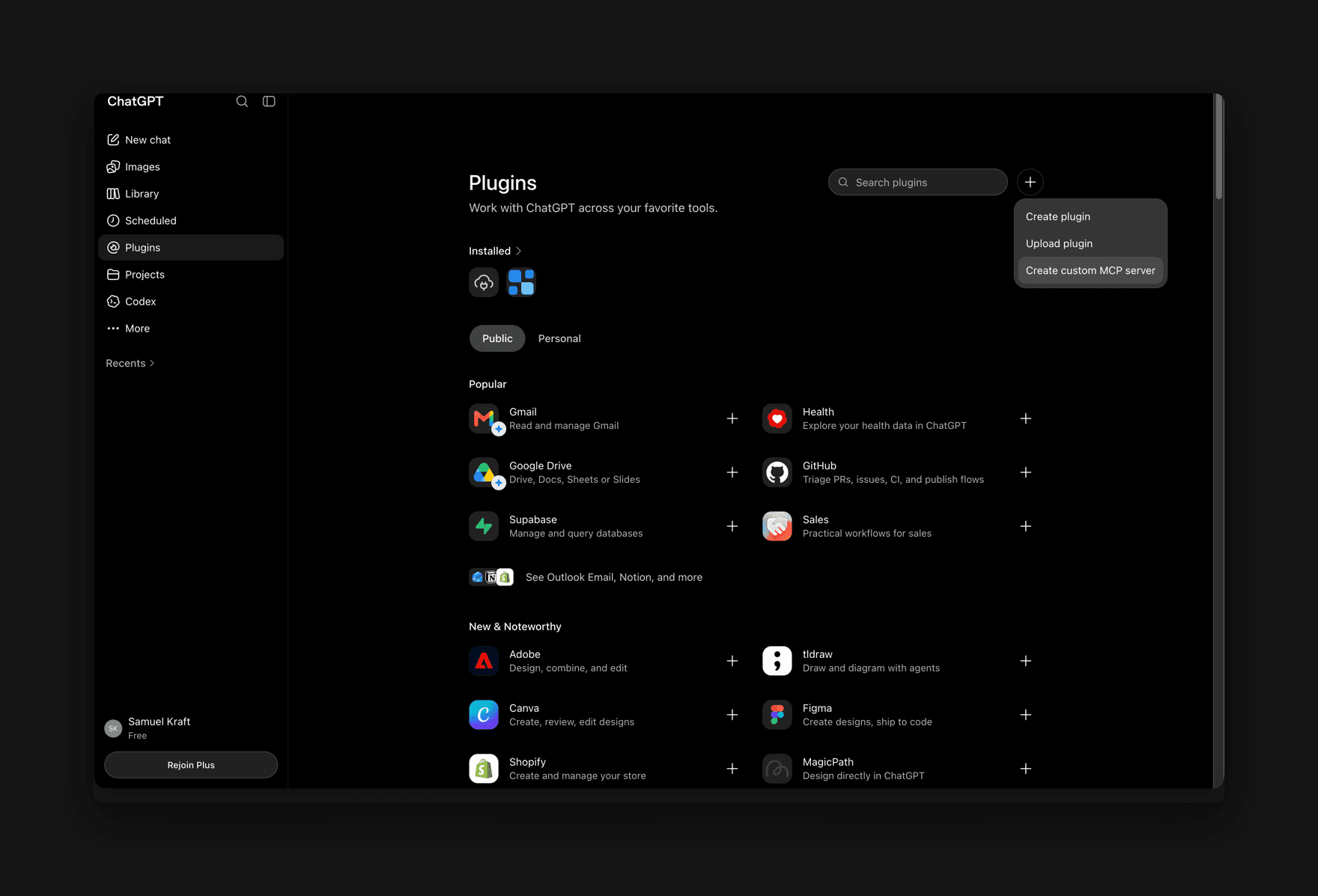
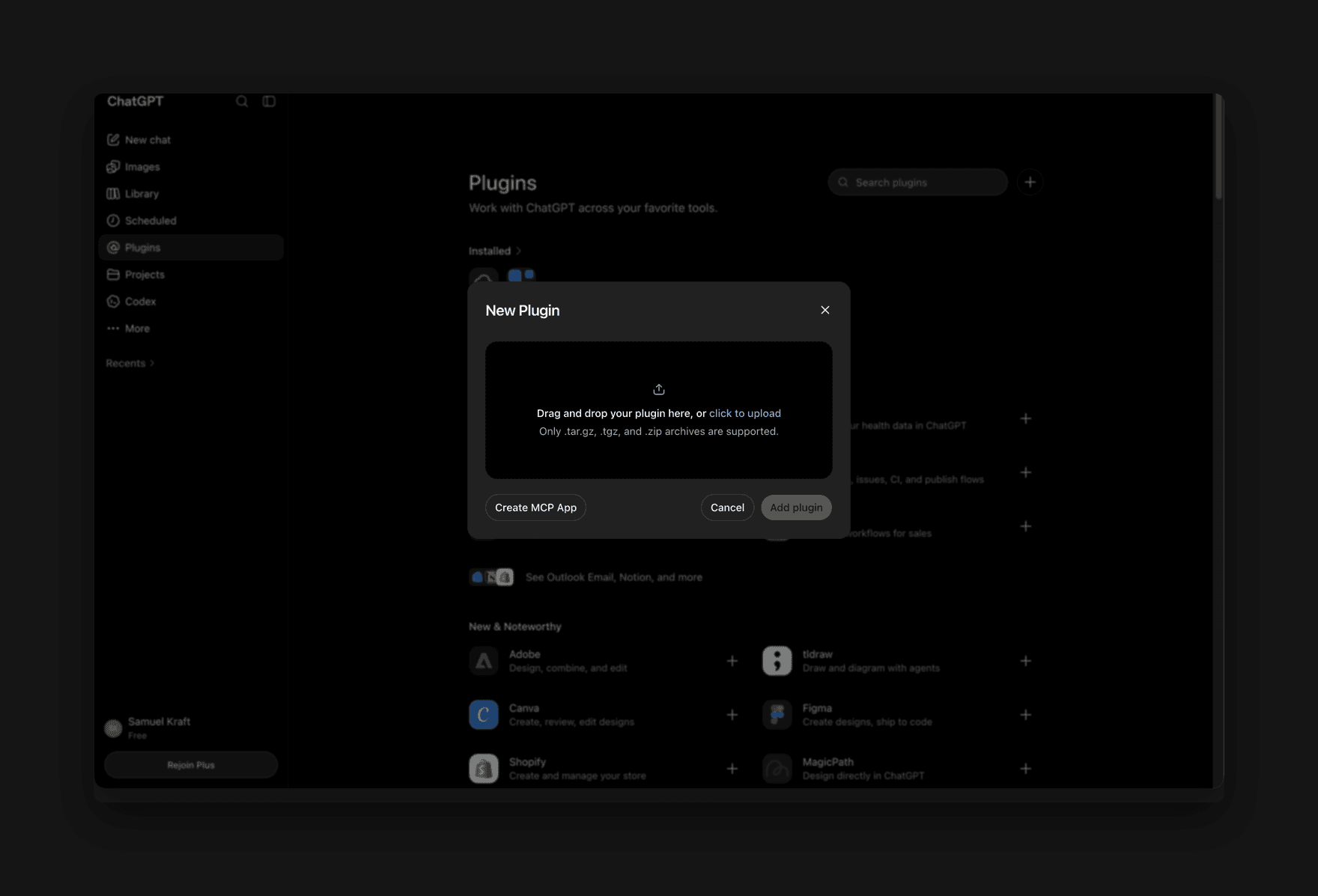
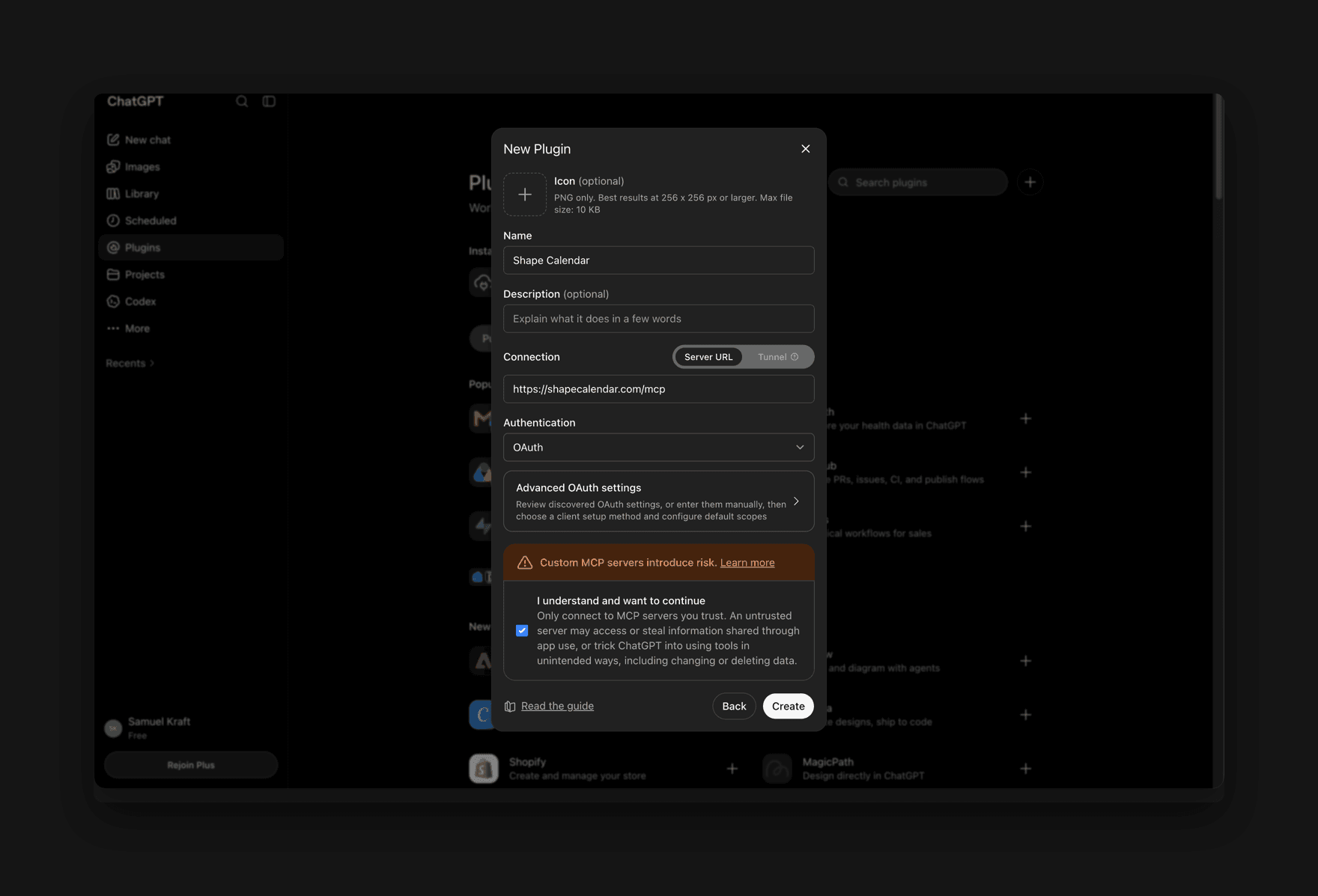
If you can’t find Shape Calendar in the directory, add it by hand. In Plugins, press the plus button next to the search field, choose Create custom MCP server and press Create MCP App. Name it Shape, paste the URL below, leave authentication on OAuth, tick the acknowledgement and press Create. Then sign in as in step 3.
https://shapecalendar.com/mcp